

One scanner that knows your collection
You know the moment: a box of new arrivals on the table, phone in hand, and the realization that
you're about to scan, tap, confirm, scan, tap, confirm… twelve times. Or you're standing at a
dealer's table at a show, trying to remember whether you already own the car in your hand. This
release makes the scanner work the way a busy collector does: aware of what you own, in step with
your checklists, wantlist and pre-orders, in batches when you need them, and on your desktop too.
The problem
The desktop site has always been where the collection lives, but it was never where the
collecting happened. Scanning on a phone worked, yet every scan was a dead end: you got a catalog
match and then had to remember, on your own, whether you already owned it. Collections also don't
arrive one box at a time. A train show haul or a delivery of pre-orders meant repeating the same
card-and-confirm routine for every item, then separately remembering to update the pre-order you
placed months ago.
Adding something new to the catalog meant filling out a three-thousand-pixel desktop form and
typing the UPC and item number off the box by hand. Checklists were for the desk, not the show
floor. And if you opened a desktop page on your phone, it scrolled sideways.
What I built
One scanner that knows your collection, and lets a scan carry as much of the work as possible.
- Ownership at a glance. Every result now shows your ownership and wantlist status.
- Scanning with a purpose. The scanner can work for something: a checklist you're
completing, your wantlist, a pre-order you're receiving, or the show you're standing in. The
button under each result does the right thing without you leaving the camera. - Batch mode. Scan a whole shelf into a list, then confirm it once.
- Catalog additions from anywhere. Add a missing model right from your phone, or prefill the
desktop catalog forms from a photo of the box label.
How it works
The basics
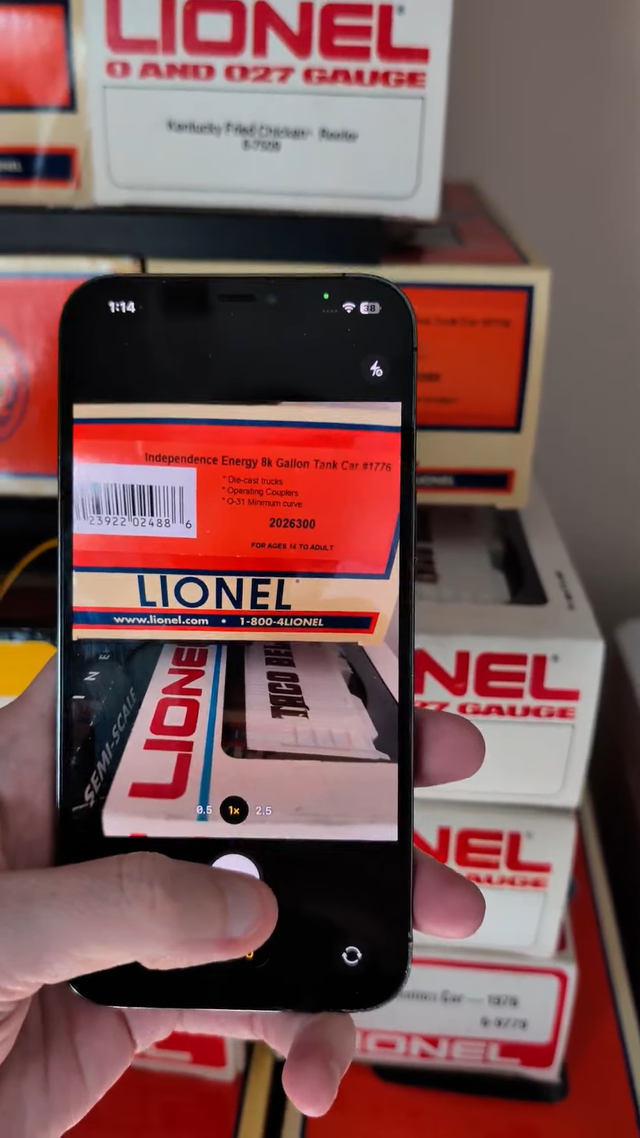
- Scan or type. Tap Add in the bottom bar, then Start camera or Take a photo of the
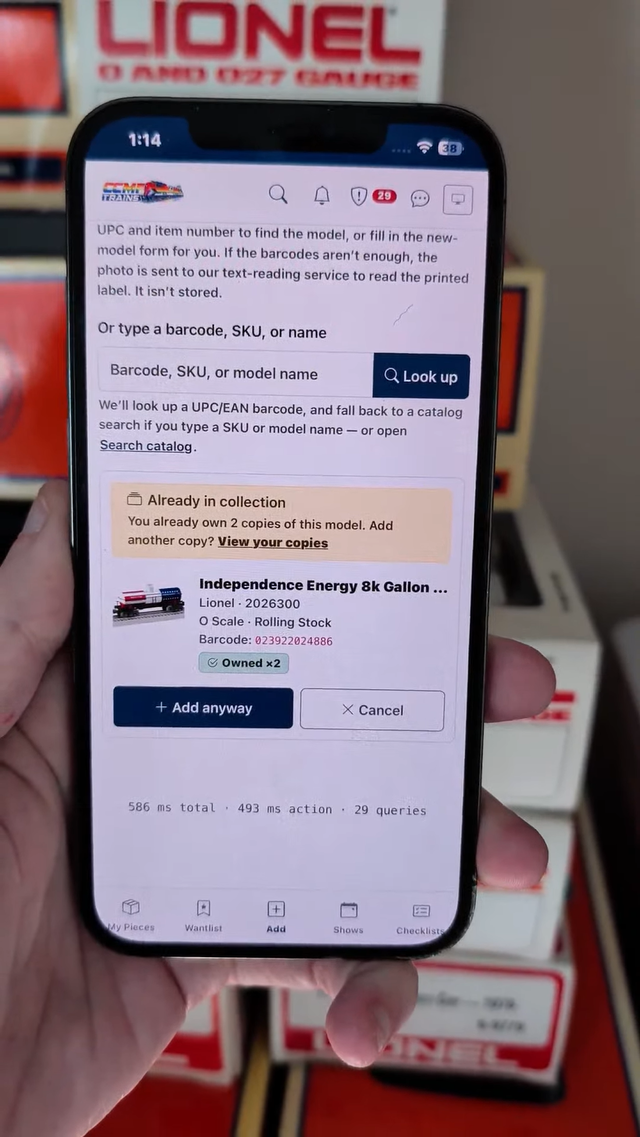
label, or type a barcode, SKU or name and tap Look up. - See what you have. A match you own shows Owned ×N; one on your wantlist shows On
wantlist. If you tap Add to collection on something you already own, I ask first: "You
already own 2 copies of this model. Add another copy?" Choose Add anyway or Cancel.
View your copies jumps to those exact pieces. - Fill in what matters, then move on. After an add, you land on the piece with Quick
details open: condition, Has its box, where the piece and box are stored, purchase price
and notes. Tap Save quick details, then Scan next. If you added a set, you land on its
page with Contents as delivered and every piece linked. - Not in the catalog? Add it from your phone. The "not in catalog" result opens Add a
model to the catalog, prefilled from the box or label. The scanner also recognizes the
manufacturer from the barcode itself (Lionel to start) and carries it into the form. Pick a
model type and tap Create model, and it's created and added to your collection. It stays a
minimal entry until you Add more details on desktop, so you're never stuck at the table.
Batch mode
- Switch Batch on. On your phone, tap Add and flip the Batch switch next to
Auto-add. The two are exclusive, so turning one on turns the other off. - Keep scanning. Barcodes and label photos alike drop into a list, and a bar under the camera
counts them up: "Batch: 6 items". Scan the same model twice and it simply becomes "×2". - Review. Tap Review to see every row with its catalog match, quantity and action:
Add piece, Add set, Skip, or Create model for a box that isn't in the catalog
yet. Anything you already own is flagged Needs a decision, so you choose Add another
copy or Skip on purpose. - Confirm. Tap Confirm 6 items and they're added together. A notice tells you the result,
and Back to scanning takes you straight to the next box.
Nothing is written to your collection until you confirm, and the list is kept if the page
reloads, so a phone call mid-shelf doesn't cost you anything. Clear batch asks you to tap
twice before it empties the list.
Scanning with a purpose
- From a checklist, tap Scan to check off. The scanner shows "Checking off: NAME", marks
each scanned model On this checklist or Not on this checklist, and the button becomes
Check off: add to collection. You stay on the camera, and a banner confirms each one. - From your wantlist, tap Scan to add. The button becomes Add to wantlist. If you
already own the model, I ask whether you want it anyway. - At an active show, tap Open scanner on the show page. Scan something another attendee
wants and you get a Spot for NAME button. One tap records the spotting.
Receiving pre-orders
Scan a model that's on one of your pending pre-orders and the card shows a Pre-ordered from
badge. The main button becomes Mark received & add to collection, so one tap marks
the order line received and adds the piece. If you'd rather keep the order open (say, for a second
copy you bought elsewhere), use Add without marking received.
Working through a whole delivery? Open the order under Pre-Orders and tap Scan received
items. The scanner opens with a "Receiving:
Checklists that work on the floor
Chips at the top (Show all, Owned only, Wantlist only and Missing only) filter the
list and show counts. Every missing row has an Add to wantlist button that updates the row in
place. Share this checklist gives you the link, a Copy link button, and a QR code a friend
can scan with their camera.
Prefill from a label photo (desktop)
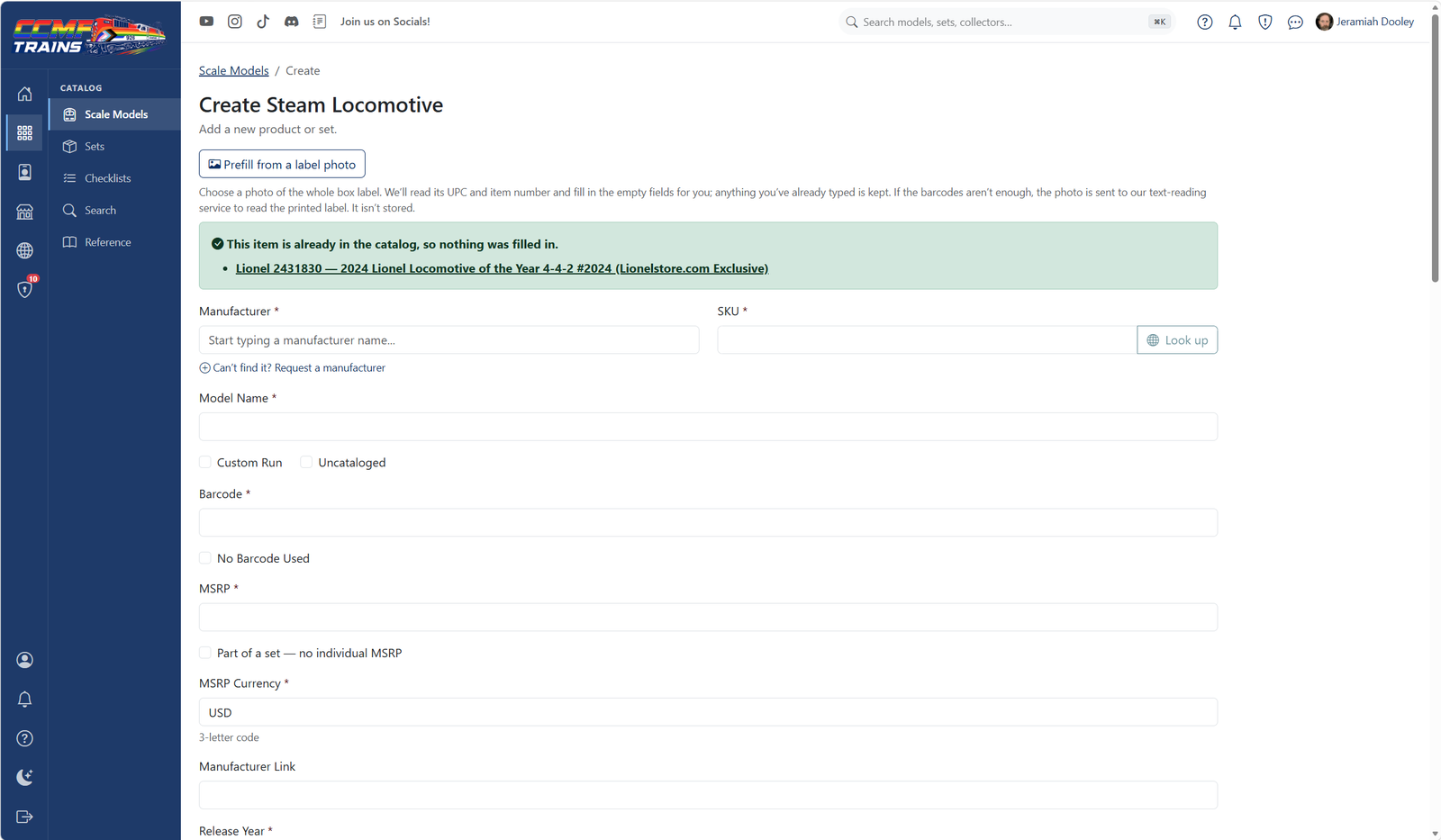
In the catalog, pick New and a model type (or New Set), then choose Prefill from a label
photo at the top of the form. Upload a photo of the whole box label (one from your phone's
camera roll is fine) and the barcodes are read right in your browser. The UPC and item number are
looked up and the empty fields filled in: "Filled in from the label: Manufacturer, SKU, Barcode."
Anything you typed before uploading is left exactly as it was, and the result tells you so: "Left
as you typed them: SKU."
If the box is already in the catalog, the form says so and fills in nothing, so you don't create
a duplicate by accident.
Install it like an app
On iPhone, the scan page shows the three steps to add CCMF Trains to your Home Screen: tap
Share, tap Add to Home Screen, then open it from the icon. You get full-screen scanning,
and on iPhone it's the only way to receive push notifications. On Android, you'll see an
Install button after a few visits. Tap Don't show again if you'd rather not.
What it means for you
- At a show: Scan before you buy. No more accidental duplicates, and no more walking past the
one piece your wantlist has been waiting for. When the buying's done, scan the whole haul in
batch mode, review once and confirm once. - Unpacking at home: Scan each box, set its condition and storage location while it's in your
hand, then tap Scan next. A whole delivery catalogued before your coffee gets cold. - Pre-orders that close themselves: The order you placed in spring is marked received the day
the box lands, with no separate bookkeeping. - Working a checklist: Open it on your phone, tap Scan to check off, and work the shelf
from top to bottom. - Less typing when you're the first: When a box isn't in the catalog yet, the manufacturer,
UPC and item number come from the label, on your phone or your desktop.
Tips and good to know
- Owning several copies is fine. The "already in collection" question is a check, not a block.
- The checklist, wantlist and show modes are just links, so you can bookmark Scan to check off
on a checklist you work often. - Batch mode is for the plain scanner. When you open the scanner from a pre-order, show or
checklist, the Batch switch isn't shown, because those screens already know what each scan
is for. - A batch holds up to 100 items. Confirm and start another if you have a bigger day than that.
- A batch row that needs a new model opens the create form one item at a time; the rest of the
list waits for you. - Pre-ordered items are never added silently, even with Auto-add on. You always get to choose.
- Models created on a phone are deliberately minimal and not marked complete. Finish them on
desktop when you have time. - Reading the label's printed text uses an hourly allowance. Past the limit, photos are read from
their barcodes only, and the screen tells you. - Your label photo is read and then discarded. It isn't saved. See the
Privacy Policy for details. - Desktop view and Mobile view now keep you on the same page, so switching mid-task is
safe. - Every mobile page is checked for accessibility in light and dark mode, works at the narrowest
phone widths without sideways scrolling, and keeps the bottom tab bar out of the way while you
type.
What's next
Two things are on the list. First, letting a batch row search the catalog by name when a label
can't be matched, so even an unreadable box can be resolved without leaving the list. Second,
offline support (scanning and spotting with no signal, then syncing later). I'm holding that one
until the online experience has logged some real show-floor miles. Tell me what breaks.
Ready to try it? Open CCMF Trains on your phone and tap Add in the bottom bar. Got a stack
of boxes waiting? Switch Batch on and scan the whole workbench. If you've been waiting for a
reason to add the site to your Home Screen, this is it. The release notes have
the full list of changes.