

Why we rebuilt the Import page
Almost every collector who arrives at CCMF Trains already has a spreadsheet. It might be a tab
per manufacturer, a single long list with a "type" column, or a workbook that has grown for
twenty years. What it almost never looks like is the layout our old import templates expected:
four category sheets (steam, diesel, rolling stock and accessories), plus a separate sets sheet
that asked you to type each set's contents all over again.
So we stopped asking. The new Import page takes the file you have and does the fitting on our
side.
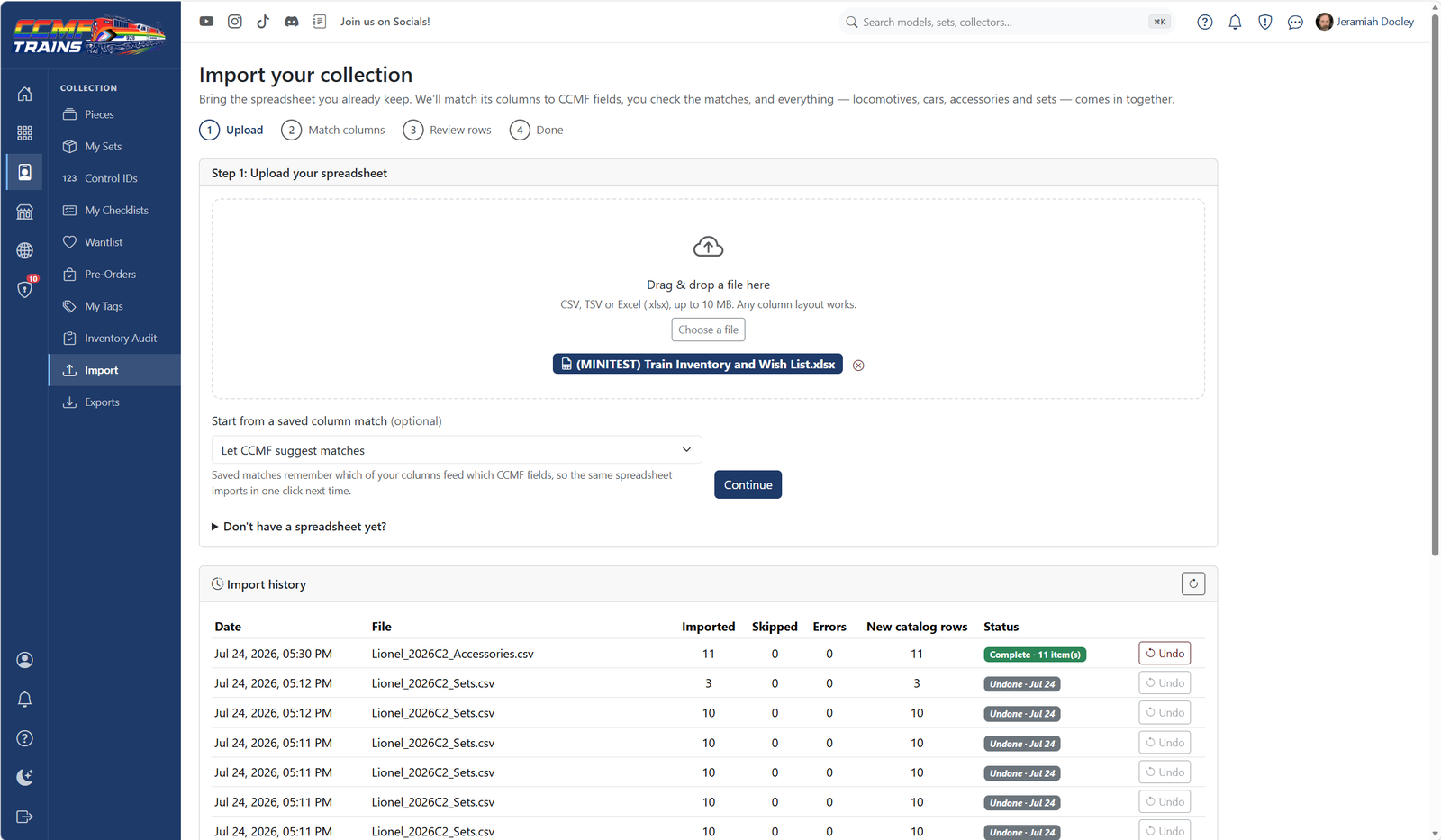
Step 1: Upload
Drag a CSV, TSV or Excel (.xlsx) file onto the page, or use "Choose a file". Files up to 10 MB
work, in any column layout. If your workbook has several worksheets, pick the one to import.
You can come back for the others.
If you've imported before, "Start from a saved column match" lets you reuse the matching you set
up last time. Otherwise, leave it on "Let CCMF suggest matches" and we'll propose matches for you.
And if you'd rather begin from a clean layout, "Download starter sheet (CSV)" gives you a single
sheet with every field CCMF accepts, plus two example rows showing how a set and its contents fit
together.
Step 2: Match your columns to CCMF fields
This is where the fitting happens. Each of your columns appears with a few sample values beside
it and the CCMF field we think it belongs to. Correct the ones we got wrong and leave the rest.
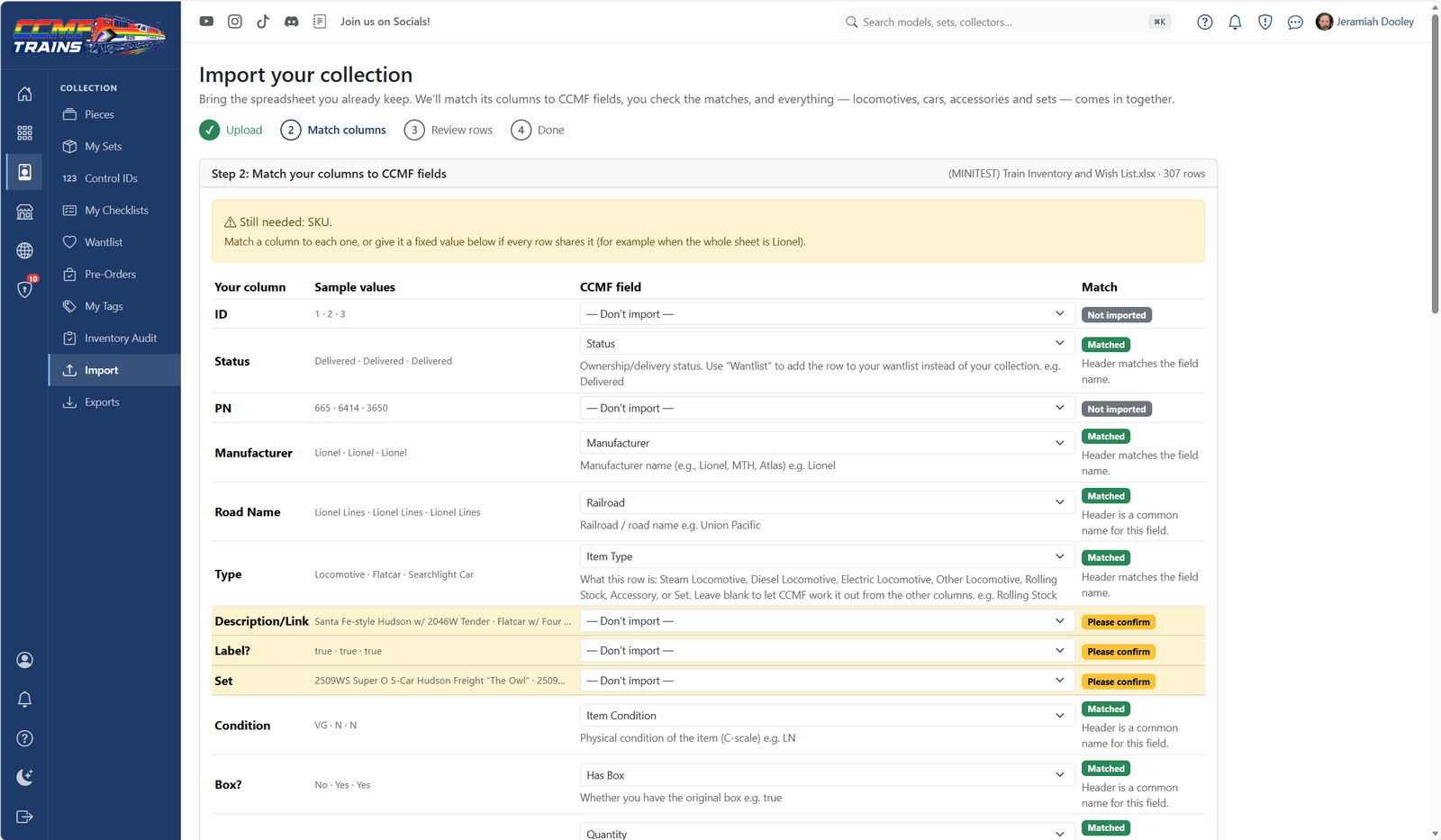
A few things make this work for real collections:
- One Name field. Your sheet has one name column, and now CCMF does too. Name (model or set)
covers locomotives, cars, accessories and sets alike. - One Item Type column. Mark rows as Steam, Diesel, Rolling Stock, Accessory or Set and fill
in only what applies. Rows that already have a wheel arrangement or a set catalog number are
typed for you. For anything left over, choose an option under "Treat untyped rows as", or skip
it and decide row by row on the review screen. - Same value for every row. If the whole sheet is Lionel, you don't need a Manufacturer
column. Add a fixed value once and every row gets it, unless its own cell says otherwise. - Save this match for next time. Give the match a name and it will be waiting for you on your
next upload.
Then press "Check rows". For a long file you'll see "Checking row 1,240 of 2,600…" count up, so you
know it's working.
Sets without the retyping
Most collectors list their pieces individually, and many of those pieces came in a set. The old
sets import made you list those pieces a second time. Now a set is just another row, with Item Type
"Set" and its own catalog number and name. Each member row carries a Belongs to Set (SKU) value
that points to it. The set and its contents arrive together, already linked, and your owned pieces
sit inside your owned set.
If a set's contents aren't in the catalog yet, the set is still created. The results page lists the
missing members under "Set contents we couldn't find" so you can add them afterward.
Step 3: Review rows
Nothing is saved until you say so. Every row appears with its status, and "Only rows that need
attention" narrows the table to the ones with a question. Each row has its own Type selector and a
"Re-check this row" action, while "Import all valid" and "Skip all" handle the bulk decisions.
Two review-screen details came straight from early testers:
- Row numbers mean what they say. When a row is flagged "This item appears more than once in
your file (also in row 31)", row 31 is the row labeled 31 on screen. - Set-versus-model conflicts are explained. Sometimes a catalog number already exists in CCMF
as a model when your sheet correctly identifies it as a set. Instead of a flat failure, the row
explains what happened, links you to the existing entry, and lets you "Request conversion to a
set" without leaving the import. A "Conversion requested" badge stays on the row, and when an
admin completes the conversion, a notification points you back here. Admins see "Convert to set
now" instead.
Results, and what to do with rows that didn't import
The results page tallies Sets, items Added to your collection, items Added to your wantlist,
Skipped rows and Errors. For anything that didn't import, "Download rows that won't import" gives
you a CSV with your original columns plus two new ones: CCMF status and CCMF next step.
Fix what's needed, bring the file back, and your saved column match applies automatically.
If something went wrong, "Undo import" removes everything that import added to your collection.
Any catalog models and sets it created stay in the catalog.
What happened to the old templates
The four category CSV templates and the separate sets import have been retired. If you have an
export in one of those layouts, it still imports. Just map its columns in Step 2 like any other
sheet.
Try it
Open Import your collection, drop in your spreadsheet, and see what CCMF suggests. We'd love
to hear which columns it got right the first time and which ones it missed.