
No barcode? No problem. Scan any boxed train with one photo
Barcode scanning is quick, until you pick up a box that doesn't have one. Many model-train boxes
print the item number and never had a barcode, or the barcode is torn, faded or hidden under a
price sticker. Until now, those boxes meant typing everything in by hand. Now you can photograph
the label and let us do the reading, barcode or not.
The problem
A barcode scanner only helps when there's a barcode to scan, and when that code is already in
the catalog. On model-train boxes, neither is a given. Many boxes have no item-number barcode, and
some have no barcode at all. The number, name and road details are simply printed on the label.
So you'd end up typing half the details into the form anyway, and hoping you copied the item
number correctly.
What we built
Label photo scan reads the whole label from one picture. It reads the printed text: the
manufacturer, item number, product name, road name and number, and scale. So a box with no
barcode can be identified from its item number alone. When there are barcodes, it reads every
one of them at the same time. Then it does the sensible thing: takes you to the item if we have
it, offers to link the barcode if we have the model but not its UPC, or opens the create form with
the details already filled in.
How it works
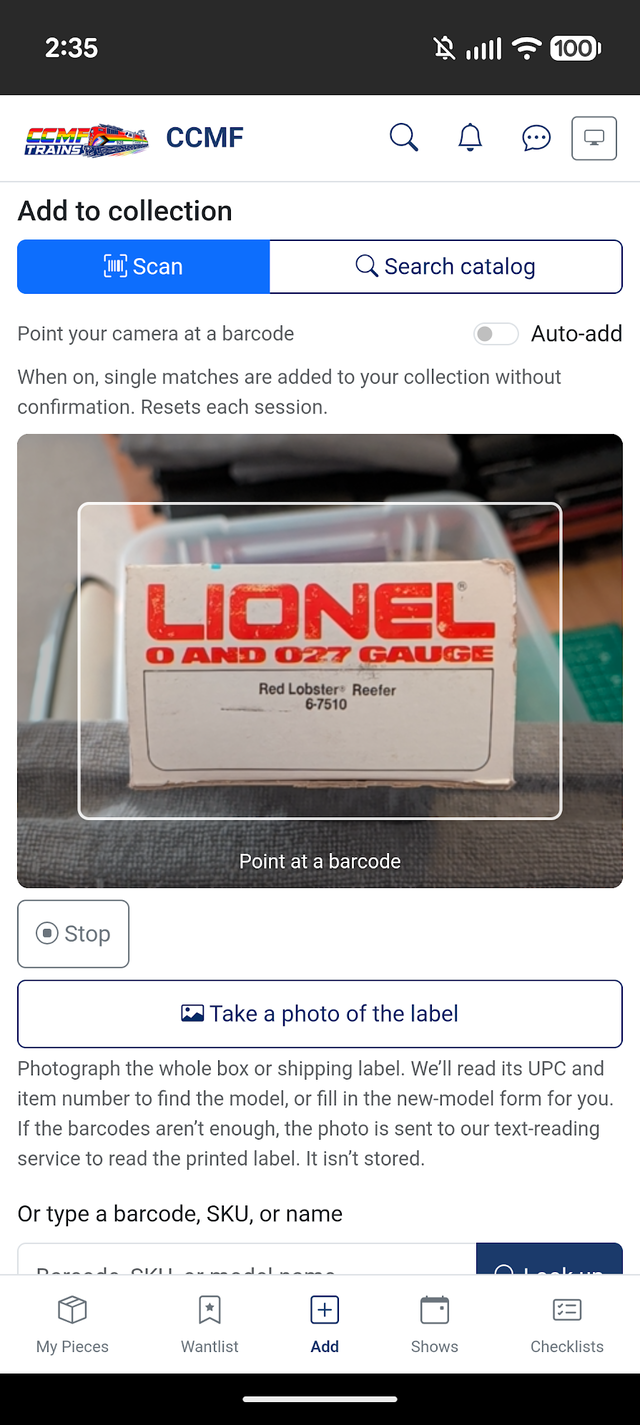
- Open the Add screen. On your phone, tap Add in the bottom bar.
- Tap Take a photo of the label. Photograph the whole box or shipping carton. Fill the frame
with the label, and keep it flat and in focus. - We read the barcodes, if there are any. Every barcode in the photo is read right on your
phone, both the UPC and any item-number barcode. - We read the print. When there's no barcode, or the barcodes don't pin down the item,
you'll see Reading label text... while we read the printed details. - You pick up where it lands:
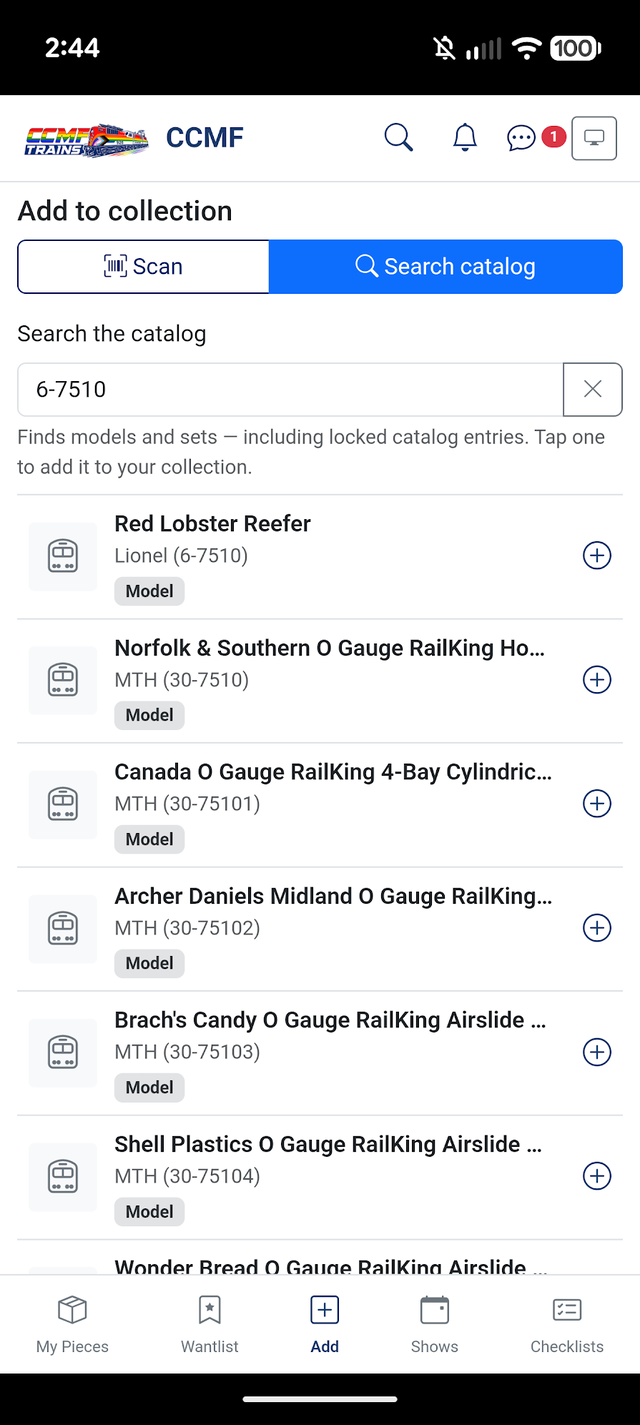
- No barcode, but the item is in the catalog? We look up the printed item number and show
the matching catalog items, ready to add to your collection. - Already in the catalog by barcode? You go straight to the item.
- The model is in the catalog, just not its barcode? Confirm, and the UPC is linked so
the next scan finds it instantly. - Not in the catalog yet? You'll see We don't have this item in the catalog yet, with
Create model & add to collection and Create set & add to collection ready to go.
- No barcode, but the item is in the catalog? We look up the printed item number and show
When you continue to create a model, the form opens with what the label said already filled in.
The model type the label points to is marked Suggested from the label, but the choice is
yours. The scale is filled in only when the label prints it. If the label says "SET" or
"2 PACK", we list Create set first and note that This label looks like a set or multi-pack.
When a barcode won't scan
Sometimes a barcode is there but just won't read: a crease, glare, or a photo taken from too far
away. If we can see the UPC's printed digits, we still look your item up by its item number. We
also let you know: The UPC barcode couldn't be read clearly, so it can't be linked from this
photo. To link it, take a closer, sharper photo of the barcode. We only link a barcode that was
actually scanned, never one read from print, so the catalog stays accurate.
What it means for you
- Catalogue the boxes a scanner can't. Older boxes, boxes without a UPC, and boxes with a
damaged barcode can all be added from one photo. - Catalogue a shelf in an evening. One photo per box, a quick check, and on to the next.
- Fewer typos. Item numbers and road numbers come straight off the label instead of being
copied by hand, which matters when you're insuring a collection or listing a piece for sale. - A better catalog for everyone. Each barcode you confirm is linked for good, so the next
collector with the same box gets an instant match.
You stay in control
A photo can be blurry, and printed labels vary, so anything we read is treated as a suggestion.
Nothing is linked or created until you confirm it. Wherever details came from the photo, we say
so and ask you to check them against the box.
Your photo isn't kept. Barcodes are read on your own phone. Only when the printed text is needed
does a smaller copy go to our text-reading service, and its hidden location details are removed
first. CCMF Trains doesn't save or log it. The Label photos section of our
Privacy Policy has the details.
Tips & good to know
- Fill the frame. A close, flat, well-lit photo of the label works best, especially when
the item number is only printed. - Older Lionel boxes. On classic Lionel UPCs we work out the item number (like 6-14588)
from the barcode itself. Give it a quick check against the box. - If text reading is busy or unavailable, you'll see Couldn't read the printed text, so these
results use the barcodes only. You can still carry on with the barcode result or search the
catalog. - Still prefer the viewfinder? Start camera and manual entry work just as before.
What's next
We'll keep tuning how well labels are read as more collectors use it, starting with the boxes
you photograph most.
Ready to try it? On your phone, tap Add → Take a photo of the label, and start with
that box that never had a barcode. See the release notes for the full list of
changes.